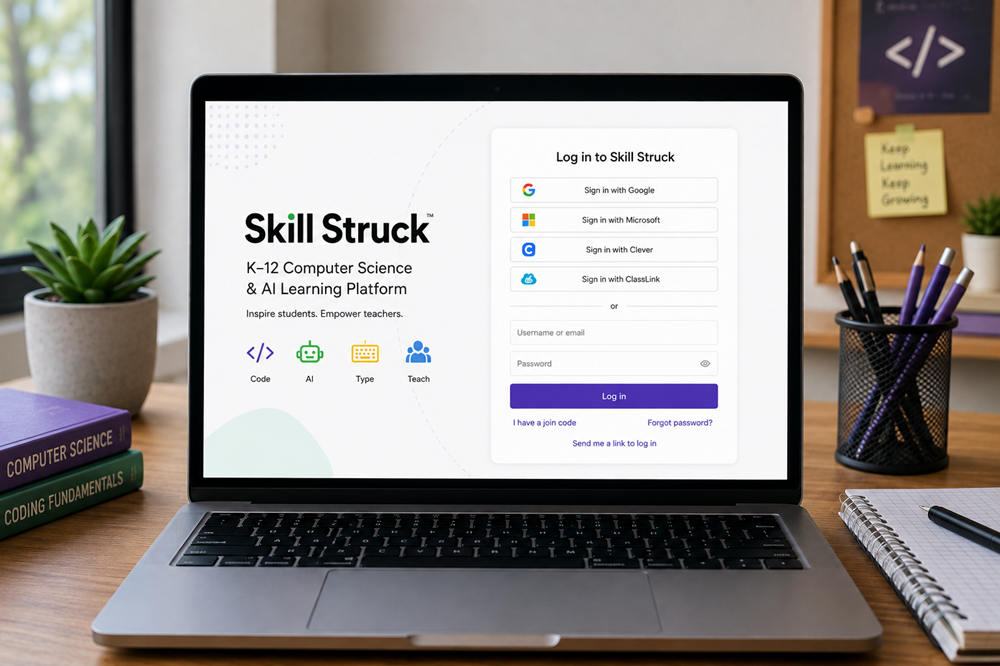
To log in to Skill Struck, open the official Skill Struck login page and use the sign-in method assigned to your account or school. Depending on your setup, that may be a Skill Struck username and password, Google, Microsoft, Clever, ClassLink, Canvas, or Schoology.
If you are having trouble getting into your account, the sections below explain which login option to use, how join codes work, and how to solve the most common Skill Struck login problems.
Official Skill Struck Login
Most users can start from the main Skill Struck login page. The correct way to continue depends on how the school or district manages accounts.
| Your Account Setup | How to Access Skill Struck |
|---|---|
| Skill Struck username or email | Enter your username or email and continue with your password |
| Google school account | Choose Sign in with Google |
| Microsoft school account | Choose Sign in with Microsoft |
| Clever | Choose Sign in with Clever or launch Skill Struck from Clever |
| ClassLink | Choose Sign in with ClassLink or launch Skill Struck from ClassLink |
| Canvas | Launch Skill Struck from the Canvas user menu if your district has the integration |
| Schoology | Launch Skill Struck from Schoology if the integration is enabled |
| Teacher gave you a join code | Choose I have a join code and enter the class code |
| Forgotten Skill Struck password | Use Forgot password? or request an emailed login link |
Not every account supports every option. In particular, users of Skill Struck’s free K–12 AI Literacy platform currently sign in with a username or email and password rather than Google, Microsoft, Clever, or ClassLink SSO.
How to Log In to Skill Struck With a Username and Password
If your account uses standard Skill Struck credentials, the login process is simple:
- Open the Skill Struck login page.
- Enter the username or email address connected to your account.
- Click Continue.
- Enter your password.
- Click Log in.
If your school manages Skill Struck through an integration, use that system instead of the standard password form. For example, a student whose account is synchronized through Clever may normally enter Skill Struck from Clever rather than typing a separate Skill Struck password.
Skill Struck Student Login
Students should use the account information provided by their teacher or school. Skill Struck supports several school-based authentication methods, so two students at different districts may have completely different login processes.
If your teacher gave you a username and password, use those credentials on the regular login page. If your school uses Google or Microsoft SSO, use your school account rather than a personal email account.
Clever and ClassLink users may be able to launch Skill Struck directly from their school portal. Schools using Canvas or Schoology can also configure those systems so students launch Skill Struck from inside the learning management system.
If you can sign in but cannot see the class you expected, the issue may be your section enrollment rather than your login. Ask your teacher to check whether your existing Skill Struck account is attached to the correct section.
Skill Struck Teacher and Educator Login
Educators can also use a regular username and password or one of their district’s configured integrations.
After a successful login, teachers are taken to the educator environment associated with their district’s Skill Struck products. Depending on the school’s setup, this may include the Computer Science Educator Portal or Chat for Schools.
The educator portal provides access to tools for managing students and sections, assigning curriculum, viewing progress, and reaching support. Because account configuration can be managed at the district level, teachers experiencing an SSO or rostering problem may need help from their district administrator rather than creating another Skill Struck account.
Other Ways to Access Skill Struck
Skill Struck supports several single sign-on and learning management system integrations. These can reduce the need for separate credentials when a district has already connected its existing systems to Skill Struck.
Google and Microsoft
Google SSO is available to teachers, students, and managers with eligible accounts. Users can select the Google sign-in option and authenticate with the Google account associated with their school.
Microsoft SSO works with organizational accounts for participating schools. Personal Microsoft accounts are not supported for this authentication method, so students and teachers should use the Microsoft account issued or approved by their organization.
Clever and ClassLink
Students and teachers at integrated districts can access Skill Struck through Clever or ClassLink. You can select the appropriate option on the Skill Struck login page or launch the Skill Struck app from your district’s Clever or ClassLink portal.
These systems may also synchronize account and class information. If an expected account or class is missing, the school’s integration administrator may need to correct the roster.
Canvas and Schoology
Skill Struck also supports access through Canvas and Schoology when a district has configured the corresponding integration.
In Canvas, teachers and students can use the Launch Skill Struck option from the Canvas user menu. Schoology offers a similar launch process through its menu. Skill Struck can then connect the user to an existing district account or create the appropriate account under the configured district.
These integrations can do more than provide access. Depending on the setup, teachers may also be able to connect Skill Struck activities with LMS assignments and grade workflows.
How to Use a Skill Struck Join Code
A join code connects a student to a particular Skill Struck section. It is not the same as a username or password.
If your teacher gives you a join code:
- Go to the Skill Struck login page.
- Choose I have a join code.
- Enter the code supplied by your teacher.
- Continue to the available login options.
- Sign in with the account method you normally use.
Once authentication is complete, your account is attached to the teacher’s section. Teachers can also distribute a join link, which sends students directly into the same joining process.
Join codes can work with different login methods, although Skill Struck says they are particularly well suited to students using Google or Microsoft school accounts. They are available in live educator and admin accounts; Free-for-Classroom accounts do not currently include join-code access.
Skill Struck Login Not Working? Try These Fixes
The right solution depends on what happens when you attempt to sign in. Start with the error or symptom that most closely matches your situation.
You See “Invalid Email or Password”
Skill Struck says students usually receive this error when the password they entered does not match the password stored for the account.
Double-check that you are using the correct account before trying again. If necessary, a teacher can provide a temporary password, or the student can request a new password through the account recovery process.
You Forgot Your Password
If you use a standard Skill Struck password, select Forgot password? on the login page. Enter your username or email and follow the instructions sent to the email address connected to the account.
This option is intended for accounts that actually use Skill Struck passwords. If your school normally signs you in through Clever, ClassLink, Google, Microsoft, Canvas, or Schoology, use the recovery process for the system your school manages.
Request a Login Link
Skill Struck also provides a Send me a link to log in option. An auto-login link is emailed to the address connected to the account, allowing an eligible user to enter without first remembering the password.
If the email does not arrive, check your spam or junk folder and make sure you are using the email associated with your Skill Struck account.
Google Says “Access Blocked”
An Access blocked message during Google SSO can indicate an administrator-level permission problem rather than an incorrect student password.
Skill Struck says the school’s Google Workspace administrator may need to allow access to Skill Struck. Platform updates can occasionally require administrators to update those permissions again.
If you see this specific error, send a screenshot or the exact error message to your teacher or school technology administrator.
The Login Page Is Not Loading Correctly
Skill Struck recommends current versions of Chrome, Firefox, Safari, and Edge, with Chrome listed as the recommended browser. JavaScript and cookies need to be enabled for the platform to work properly.
For browser-related problems, try:
- Performing a hard refresh.
- Clearing the browser cache and cookies.
- Logging out and signing in again.
- Updating the browser to its current version.
- Checking whether an ad blocker, script blocker, privacy extension, or school filtering tool is interfering with the site.
A stable internet connection is also important, particularly when using Skill Struck’s coding and classroom platforms.
Your Account Works but Your Class Is Missing
This is often a section or rostering issue rather than a login failure. Teachers can check whether the student has been added to the correct Skill Struck section. In districts using integrations such as Clever or ClassLink, the district integration team may need to correct the synchronized roster.
You Still Cannot Get In
Students should contact their teacher when the normal recovery steps do not solve the problem. Teachers and administrators can use the Skill Struck Help Center or contact Skill Struck support for account and integration assistance.
Should You Create a New Skill Struck Account?
Do not create another account simply because your existing login is not working.
Skill Struck’s account guidance says new student accounts should be created for students who do not already have an account. If an existing student has moved into a new class, the existing account can be added to the new section instead.
Schools using an account integration should generally add students through that integration rather than manually creating duplicate accounts.
What Is Skill Struck?
Skill Struck is an education technology platform that provides computer science and artificial intelligence learning tools for K–12 schools. Its products include student learning environments, coding activities, AI literacy content, typing instruction, and educator tools for managing classes and monitoring progress.
Because Skill Struck works with different district systems, there is no single login method that applies to every student or teacher. The school’s account configuration determines the appropriate route.
Skill Struck Login FAQ
Can I log in to Skill Struck with Clever or ClassLink?
Yes. If your district has the integration enabled, you can use the Clever or ClassLink option on the Skill Struck login page or launch Skill Struck directly from your school’s Clever or ClassLink portal.
Can I access Skill Struck through Canvas or Schoology?
Yes, when your district has configured the relevant integration. Teachers and students can launch Skill Struck from within Canvas or Schoology rather than starting with the normal Skill Struck login form.
Why does Skill Struck say my email or password is invalid?
The error usually means the password entered does not match the one attached to the account. Check that you are using the correct username and login method. Students can request a password reset, and educators may be able to provide a temporary password.
Where do I enter a Skill Struck join code?
From the login process, choose I have a join code and enter the code your teacher provided. After that, sign in so Skill Struck can connect your account to the appropriate section.