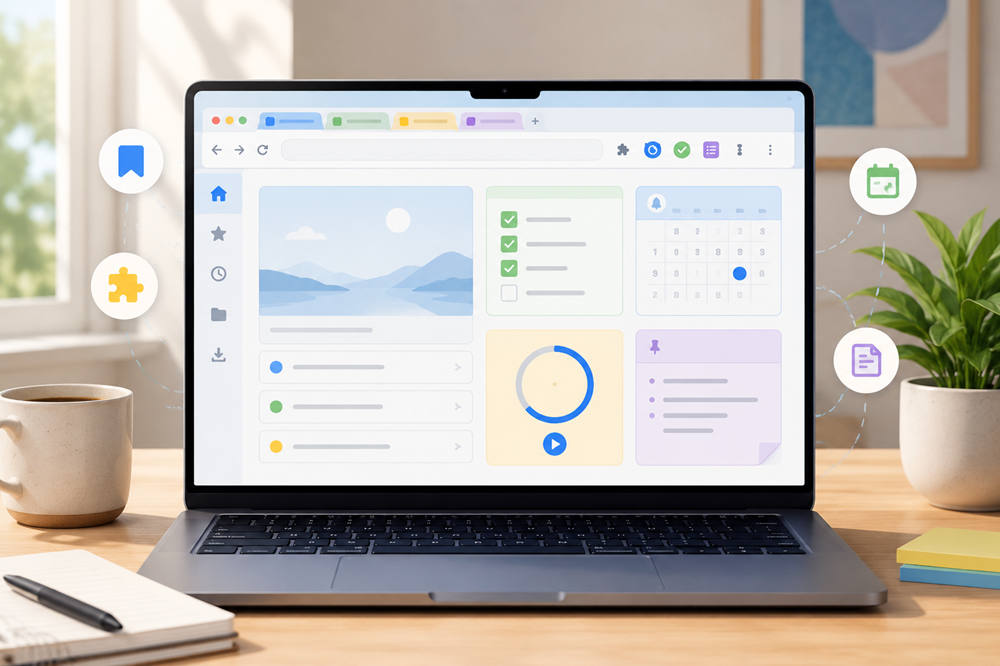
Chrome is where many people work every day. We write emails, manage tasks, research ideas, save links, check documents, and move between tools.
Chrome productivity extensions can make that work smoother. The right one can help you block distractions, organize tabs, save research, track time, or turn a webpage into a task.
The goal is not to install every popular extension. Too many add-ons can clutter your browser and create privacy risks. Choose a few tools that solve real problems in your daily routine.
What Are Chrome Productivity Extensions?
Chrome productivity extensions are small browser add-ons that give Chrome extra features. Some help with focus. Others help with writing, task management, bookmarks, passwords, screenshots, time tracking, or research.
Used well, they can help you:
- Save time on repeated actions
- Stay focused during work sessions
- Organize tabs and bookmarks
- Capture notes and ideas quickly
- Improve online writing
- Track where your time goes
- Reduce digital clutter
Used poorly, they can become another distraction. That is why it helps to install extensions with purpose, not just because they sound useful.
1. Task Management Extensions
If your tasks are scattered across emails, sticky notes, documents, and random thoughts, a task management extension can help you collect them in one place.
Useful Chrome task management extensions include:
- Todoist for Chrome
- TickTick
- Any.do
- Google Keep
- Workona Tasks
These tools are helpful for saving webpages as tasks, creating reminders, and organizing work by project. Keep the system simple. Start with basic lists like today, upcoming, and projects. If the tool takes more time to manage than the task itself, it is probably too complicated.
2. Focus and Distraction Blocking Extensions
Focus is hard when every tab can lead to a distraction. Focus extensions help by limiting access to distracting websites. Some set time limits. Others block certain pages during work hours.
Useful Chrome focus extensions include:
- StayFocusd
- BlockSite
- Forest: stay focused, be present
- Freedom
- LeechBlock NG
These tools will not fix every focus problem, but they can create a helpful pause between you and your usual distractions. Start with your top two or three distraction sites. Small limits are easier to keep than extreme rules.
3. Tab Management Extensions
Too many tabs can make your browser feel messy and overwhelming. Tab management extensions help you organize, save, or close tabs without losing important pages.
Useful Chrome tab management extensions include:
- OneTab
- Toby
- Workona
- Session Buddy
- Tab Wrangler
Tab managers are helpful if you switch between several projects, research many topics at once, or keep tabs open because you are afraid of losing them.
A simple rule can help: if you are not using a tab today, save it somewhere and close it. Your browser should show what you are working on now, not everything you might need someday.
4. Writing and Grammar Extensions
If you write emails, reports, blog posts, captions, comments, proposals, or messages in Chrome, a writing extension can save time.
Useful Chrome writing extensions include:
- Grammarly
- LanguageTool
- ProWritingAid
- QuillBot
- Wordtune
Writing tools can catch typos, grammar issues, unclear sentences, and tone problems. They are especially helpful when you write quickly.
Still, do not accept every suggestion automatically. A tool may improve grammar but make your writing sound stiff. Use it as a second pair of eyes, not as your final voice.
5. Note-Taking and Research Extensions
If you research online, a note-taking or web clipping extension can make your work easier. These tools help you save articles, pages, quotes, screenshots, and ideas in one place.
Useful Chrome note-taking and research extensions include:
- Notion Web Clipper
- Evernote Web Clipper
- Google Keep
- Glasp
- Readwise Reader
These tools are useful for students, writers, researchers, bloggers, marketers, business owners, and anyone planning a project.
A good habit is to save each page with a short note explaining why it matters. A few words like “good example” or “use for intro” can save time later.
6. Time Tracking Extensions
Sometimes the problem is not laziness. It is not knowing where your time is going.
Time tracking extensions show how long you spend on projects, clients, study sessions, admin work, writing, meetings, or research.
Useful Chrome time tracking extensions include:
- Toggl Track
- Clockify
- RescueTime
- Timely
- TrackingTime
These tools can help you estimate projects better, bill clients more accurately, and notice where time gets wasted. You do not need to track every minute forever. Even one week of time tracking can show useful patterns.
7. Bookmark and Read-Later Extensions
Not every useful page needs to become a task. Some pages are simply worth saving for later.
Useful Chrome bookmark and read-later extensions include:
- Raindrop.io
- Instapaper
- Save to Google Drive
- Bookmarks by the Side
These tools help you save articles, guides, videos, and resources without leaving them open as tabs. This keeps your browser cleaner while still giving you a place to store useful information.
The important habit is review. Otherwise, your read-later list becomes another messy drawer. Delete what no longer matters and keep only what is useful.
8. Password and Login Extensions
Password managers may not sound like productivity tools, but they can save a surprising amount of time.
Useful Chrome password manager extensions include:
- Bitwarden
- 1Password
- Dashlane
- Keeper
- LastPass
These tools reduce login friction, save time on password resets, and help you use stronger passwords. Choose a trusted password manager, use a strong master password, and turn on two-factor authentication when possible.
9. Screenshot and Screen Capture Extensions
Sometimes it is faster to show something than explain it. Screenshot extensions can help you capture part of a webpage, save a full-page screenshot, or record a quick visual note.
Useful Chrome screenshot and screen capture extensions include:
- Awesome Screenshot
- Loom
- Nimbus Screenshot
- GoFullPage
- FireShot
These tools are useful for sharing website issues, creating tutorials, saving visual examples, giving feedback, or explaining steps to a teammate.
Before sharing a screenshot, check for private details such as names, emails, account numbers, open tabs, or personal messages.
10. AI and Automation Extensions
Many newer Chrome productivity extensions include AI features. Some summarize pages, draft emails, rewrite text, answer questions, or automate small browser tasks.
Useful Chrome AI and automation extensions include:
- ChatGPT for Google
- Monica
- Merlin
- Compose AI
- Magical
- Bardeen
These tools can speed up research, writing, and repeated browser actions. Still, use extra caution. AI extensions may request access to page content, browsing activity, or text you type. Check the developer, permissions, reviews, and update history before installing one.
How to Choose the Right Chrome Productivity Extensions
The best Chrome productivity extensions are not always the most popular ones. They are the ones that solve your actual problem.
Before installing a new extension, ask yourself:
- What problem will this solve?
- Will I use it at least once a week?
- Does it duplicate a tool I already have?
- Does it ask for permissions that make sense?
- Is the developer trustworthy?
- Are the recent reviews still positive?
- Has the extension been updated recently?
You can browse the Chrome Web Store productivity collection to compare different tools, but do not install something just because it appears popular.
Start small. Choose one extension for your biggest daily frustration. Use it for a week. If it helps, keep it. If it does not, remove it.
What to Avoid When Using Chrome Productivity Extensions
Chrome extensions can help, but they can also create new problems if you install too many or choose carelessly.
Avoid these common mistakes:
- Installing several tools that do the same thing
- Keeping old extensions you no longer use
- Ignoring permission warnings
- Trusting unknown copycat extensions
- Adding tools because they are trendy
- Using extensions instead of improving basic habits
- Letting your browser become more cluttered than before
Google recommends reviewing extension permissions because some extensions may request access to your data or the websites you visit. You can read Google’s guidance on Chrome extension permissions before installing a new tool.
A smart habit is to review your extensions once a month. Remove anything you do not use and keep your setup simple.
Summary
Chrome productivity extensions can make your workday smoother, but only when you choose them with purpose.
A task manager can help you capture ideas. A focus blocker can protect your attention. A tab manager can reduce browser clutter. A writing assistant can polish your messages. A web clipper can organize research. A time tracker can show where your hours really go.
The best extension is not the one with the longest feature list. It is the one that removes friction from your real daily work.
Start with one problem. Choose one tool. Use it consistently. Then build from there.