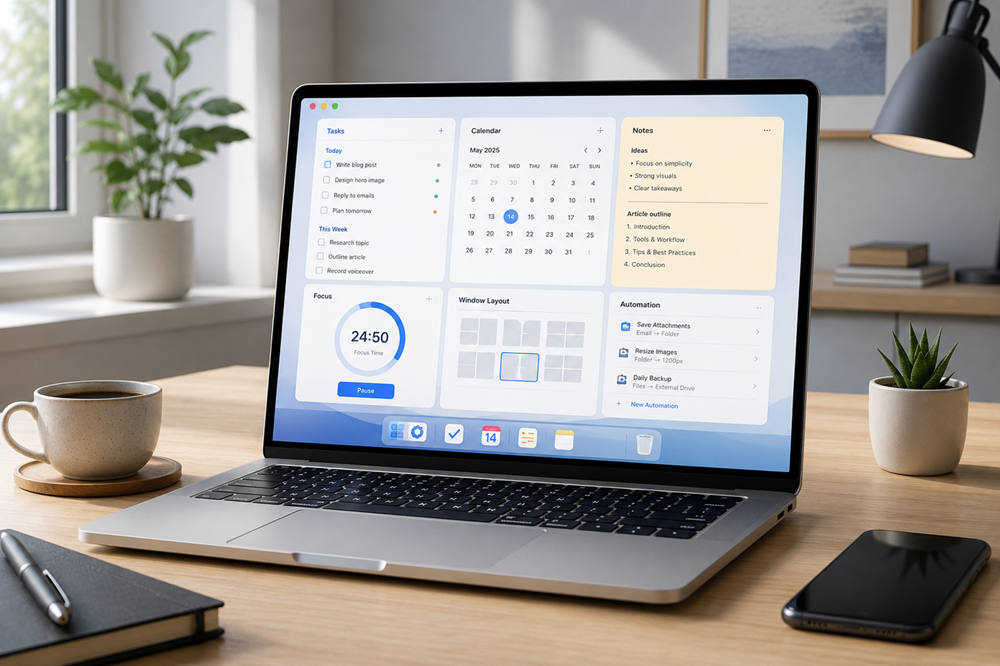
A Mac can already do a lot with built-in tools like Notes, Reminders, Calendar, Spotlight, Focus modes, and Shortcuts. But if your day includes writing, planning, meetings, research, screenshots, or repeated tasks, the right Mac productivity apps can make your workflow feel much smoother.
The key is not to install every popular app. A better setup starts with one question: what slows you down most? Maybe your tasks are scattered, your notes are messy, your screen feels crowded, or you keep losing time to small distractions.
This guide breaks down the best Mac productivity apps by category, so you can choose tools that actually fit the way you work.
What Makes a Good Mac Productivity App?
A good Mac productivity app should feel fast, simple, and easy to reach. The best ones usually work well with keyboard shortcuts, sit neatly in the menu bar, sync across Apple devices, or reduce the number of clicks needed to do everyday work.
The app should also solve a clear problem. A task manager should help you know what to do next. A note app should help you capture and find ideas. A window manager should make your workspace easier to control.
If an app takes more time to manage than the problem it solves, it probably does not belong in your setup.
Best Mac Productivity Apps by Category
1. Task Management Apps
Task management apps help you collect tasks, organize projects, set deadlines, and keep recurring work from slipping through the cracks. They are especially useful if you often rely on memory, random notes, or half-finished lists across different places.
Things is one of the best Mac task managers for people who want a clean, polished app that feels native to macOS. It works well for personal planning, work projects, daily routines, and larger goals.
Todoist is a strong choice if you need cross-platform support and want your tasks available on Mac, phone, browser, and other devices. TickTick is another useful option, especially if you like built-in habits, reminders, and calendar-style planning.
A task app works best when it becomes your trusted place for what needs to be done, not another place where tasks disappear.
2. Calendar and Scheduling Apps
A calendar helps you see your actual time. A task list may tell you what needs to happen, but your calendar shows whether your day has enough space for it.
Fantastical is a popular Mac calendar app because it supports natural language input, multiple calendar views, tasks, time zones, and quick scheduling. It is useful for people who manage meetings, appointments, deadlines, and time blocks in one place.
Apple Calendar is still a good option if you want something simple and already connected to iCloud. For many Mac users, it is enough when paired with Reminders and Focus modes.
Use your calendar for more than meetings. Add time blocks for deep work, admin tasks, writing, planning, errands, and breaks. This helps you stop treating the day like it has unlimited space.
3. Note-Taking and Knowledge Apps
A good note app gives your ideas somewhere to land. It can hold meeting notes, project details, article ideas, research, book notes, checklists, and anything else you may need later.
Obsidian is a strong choice for people who want a personal knowledge base. It is especially useful for research-heavy work because you can connect notes, organize ideas, and build a system that grows over time.
Apple Notes is better if you want speed and simplicity. It opens quickly, syncs well across Apple devices, and works for everyday notes without much setup. Bear is a clean writing-focused option, while Notion is useful if you want notes, databases, project pages, and planning in one workspace.
The best note app is not the one with the most features. It is the one where you can quickly capture something and actually find it again.
4. Focus and Distraction Blocking Apps
If your biggest problem is attention, not organization, a focus app can help. These tools protect your work time by blocking distracting websites, limiting apps, or creating timed work sessions.
Session, Cold Turkey, and Freedom are useful options for blocking distractions during focused work. macOS Focus modes are also worth using, especially if you want to silence notifications across Apple devices during writing, meetings, or deep work.
Focus apps work best when you use them for specific blocks of time. For example, you might block distracting sites for 45 minutes while writing, planning, studying, or finishing an important task.
The goal is not to make your Mac feel strict. The goal is to make focused work easier to start and easier to protect.
5. Window Management Apps
If you spend too much time dragging and resizing windows, a window manager can make your Mac feel much faster.
Rectangle is a simple Mac window management app that lets you move and resize windows with keyboard shortcuts. You can quickly place a browser on one side of the screen, notes on the other, or move windows between monitors.
Magnet and Moom are also popular choices. These apps are especially helpful if you work on a MacBook screen, use an external monitor, or often compare documents side by side.
A window manager is one of those small tools that can quietly save time every day. Once you get used to keyboard shortcuts for your layout, manually resizing windows feels slow.
6. Clipboard and Text Expansion Apps
Clipboard managers and text expansion apps are useful if you copy, paste, write emails, reuse links, answer similar questions, or type the same phrases often.
Maccy is a lightweight clipboard manager for macOS. It lets you access clipboard history, so you do not lose something just because you copied another item.
Paste is a more visual clipboard manager with a polished interface. TextExpander is useful if you often reuse full sentences, email replies, signatures, meeting notes, or support responses.
This category is great for saving time on tiny repeated actions. One copied link or saved phrase may not seem like much, but repeated small tasks add up quickly.
One simple safety rule: download clipboard apps only from official websites or trusted app stores, because clipboard tools can access sensitive copied information.
7. Screenshot and Screen Recording Apps
Screenshots are useful for feedback, tutorials, bug reports, client notes, documentation, and quick explanations. macOS already includes a built-in screenshot tool, but dedicated apps can make capturing and editing much faster.
CleanShot X is a powerful screenshot and screen recording app for Mac. It supports annotations, scrolling capture, screen recording, cloud sharing, and quick edits.
Shottr is another good option if you want a lightweight screenshot app with fast annotations, measurements, and simple editing tools.
A screenshot app is worth considering if you often explain things visually. Instead of writing a long message, you can capture the screen, mark the important area, and send a clearer answer.
8. Time Tracking Apps
Time tracking helps you understand where your workday actually goes. This is useful for freelancers, consultants, students, managers, and anyone who feels busy but cannot always explain what took so long.
Timing is a Mac time tracking app that automatically tracks time spent in apps, websites, and documents. This is helpful if you do not want to start and stop manual timers all day.
Toggl Track is a good option if you prefer manual timers, project tracking, and reports. It works well for people who bill clients, track project hours, or want a clearer picture of their work habits.
The point of time tracking is not to judge every minute. It is to notice patterns. You may find that meetings take your best hours, admin work is heavier than expected, or your most focused work happens at a certain time of day.
9. Automation and Launcher Apps
Launchers and automation tools are some of the most powerful Mac productivity apps. They help you open apps, search files, run commands, create shortcuts, control settings, and reduce repetitive clicking.
Raycast is a modern Mac launcher that can handle app launching, snippets, clipboard history, window management, extensions, quick commands, and AI features from a keyboard-driven interface.
Alfred is another favorite among Mac power users. It is great for launching apps, searching files, expanding text snippets, and building custom workflows.
Apple’s built-in Shortcuts app is also worth exploring. You can use it to resize images, open a group of apps, create notes, organize files, or run repeated steps with one command.
Start small with automation. Pick one task you repeat often, like opening your writing apps or resizing images, and build from there.
A Simple Mac Productivity App Setup
If you are starting from scratch, keep your setup simple. You do not need a dozen apps to become more productive.
A strong basic setup might include:
- One task manager for your to-do list
- One calendar app for meetings and time blocks
- One note app for ideas and reference material
- One window manager for a cleaner workspace
- One focus tool for distraction-free work
- One utility app, such as a clipboard manager or launcher
This gives you a useful system without making your Mac feel crowded.
How to Choose the Right Mac Productivity Apps
The best Mac productivity apps are the ones that fit your real workflow. Before adding a new tool, ask what problem it solves and how often you will actually use it.
Use these simple rules:
- Start with your biggest daily frustration.
- Try one new app at a time.
- Avoid apps that duplicate the same job.
- Choose tools that support keyboard shortcuts.
- Use built-in Mac apps first when they are enough.
- Remove apps that make your workflow feel heavier.
- Keep your setup easy to maintain.
A productivity app should make your day feel lighter. If it creates more setup, more decisions, or more clutter, simplify.
Common Mistakes to Avoid
The biggest mistake is downloading too many apps at once. It can feel productive at first, but soon you may spend more time adjusting tools than doing real work.
Another mistake is choosing complicated apps when simple ones would work better. Not every workflow needs dashboards, databases, automations, tags, templates, and custom systems.
Also, be careful not to over-organize. A neat setup is helpful, but the point is to support action. If you spend more time sorting tasks than finishing them, your system needs to be simpler.
And do not overlook macOS itself. Spotlight, Notes, Reminders, Calendar, Focus modes, Shortcuts, Stage Manager, and keyboard shortcuts can already handle many everyday productivity needs.
Summary
Mac productivity apps can help you plan your work, organize notes, manage windows, reduce distractions, track time, take better screenshots, and automate repeated tasks. But the best setup is not the biggest one.
Start with the problem that slows you down most. If you forget tasks, choose a task manager. If your screen feels messy, add a window manager. If distractions break your focus, try a focus tool. If you repeat the same steps every day, use a launcher or automation app.
The right apps should make your Mac feel calmer, faster, and easier to use. When your tools reduce friction instead of adding more noise, your computer becomes a better place to think, create, and get work done.